Overview
NoderPay gives merchants Bitcoin invoices, automatic payment detection, APIs, webhooks and ready-made integrations without requiring them to operate their own Bitcoin payment server.
No seed phrase. No private keys. Connect using supported public wallet information such as XPUB/ZPUB.
This add-on integrates XenForo directly with NoderPay, allowing you to accept Bitcoin payments for user upgrades with automatic payment verification and instant user group upgrades.
Unlike traditional payment gateways, NoderPay focuses on Bitcoin while providing a simple merchant dashboard, wallet management, invoice tracking, webhooks, and developer APIs.
- Native XenForo payment provider
- Automatic Bitcoin payment verification
- Automatic user upgrades
- Secure webhook/IPN handling
- Merchant dashboard
- Store management
- Wallet management
- Invoice management
- REST API
- Self-hosted payment infrastructure behind the scenes
Requirements
- XenForo 2.x
- PHP 8+
- A free NoderPay merchant account
Step 1 — Create a NoderPay Account
Register for a free merchant account:
NoderPay
[Image unavailable; source: https://app.noderpay.com/favicons/favicon-16x16.png] app.noderpay.comAfter registration, verify your email and log in to your merchant dashboard.
Step 2 — Create Your Store
Go to:
NoderPay
[Image unavailable; source: https://app.noderpay.com/favicons/favicon-16x16.png] app.noderpay.comClick Create Store.
Fill in your store information and save it.
Each XenForo payment profile uses a Store ID from your NoderPay account.
Step 3 — Connect Your Bitcoin Wallet
Open the Wallets section inside your NoderPay dashboard.
Connect your Bitcoin wallet by entering your wallet XPUB/ZPUB.
Once your wallet has been connected successfully, your store is ready to receive Bitcoin payments.
Step 4 — Create an API Key
Go to:
NoderPay
[Image unavailable; source: https://app.noderpay.com/favicons/favicon-16x16.png] app.noderpay.comClick Create API Key.
Copy the generated API Key.
You'll use this API key inside XenForo.
Installing the XenForo Add-on
Upload the add-on files to your XenForo installation.
Install it from:
Admin Control Panel → Add-ons
After installation, continue with the payment provider configuration.
Creating the Payment Profile
Navigate to:
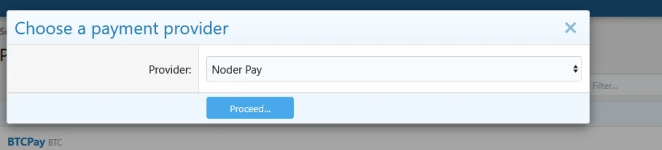
Admin CP → Payments → Payment Profiles
Click:
Add Payment Profile
Select:
NoderPay
Click:
Proceed
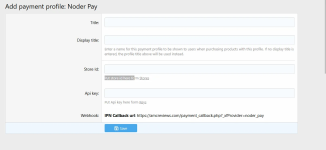
You will see the NoderPay configuration page.
Payment Profile Configuration
Title
Example:
Code:
NoderPayDisplay Title
Example:
Code:
BitcoinStore ID
Copy your Store ID from:
NoderPay
[Image unavailable; source: https://app.noderpay.com/favicons/favicon-16x16.png] app.noderpay.comAPI Key
Copy your API Key from:
NoderPay
[Image unavailable; source: https://app.noderpay.com/favicons/favicon-16x16.png] app.noderpay.comWebhook
The webhook URL is displayed automatically by XenForo.
Example:
Code:
https://yourforum.com/payment_callback.php?_xfProvider=noder_payYou don't need to edit this URL.
Simply copy it into your NoderPay Store webhook settings.
Payment Flow
Code:Customer purchases a XenForo upgrade
│
▼
XenForo creates a payment request
│
▼
Customer is redirected to NoderPay
│
▼
Customer pays with Bitcoin
│
▼
NoderPay verifies the payment
│
▼
Webhook is sent back to XenForo
│
▼
User is upgraded automatically
Fetures
- Bitcoin payments
- Merchant dashboard
- Multiple stores
- Wallet management
- Invoice management
- Automatic payment verification
- Automatic user upgrades
- REST API
- Secure webhook handling
- Fast checkout experience
- Real-time payment status
- Easy merchant onboarding